
Custom Headshots
Custom headshots replace the standard backdrop-and-clothing flow with a fixed set of looks you define. Every member's headshots are generated from the looks you configure here, so a whole team comes back consistent.
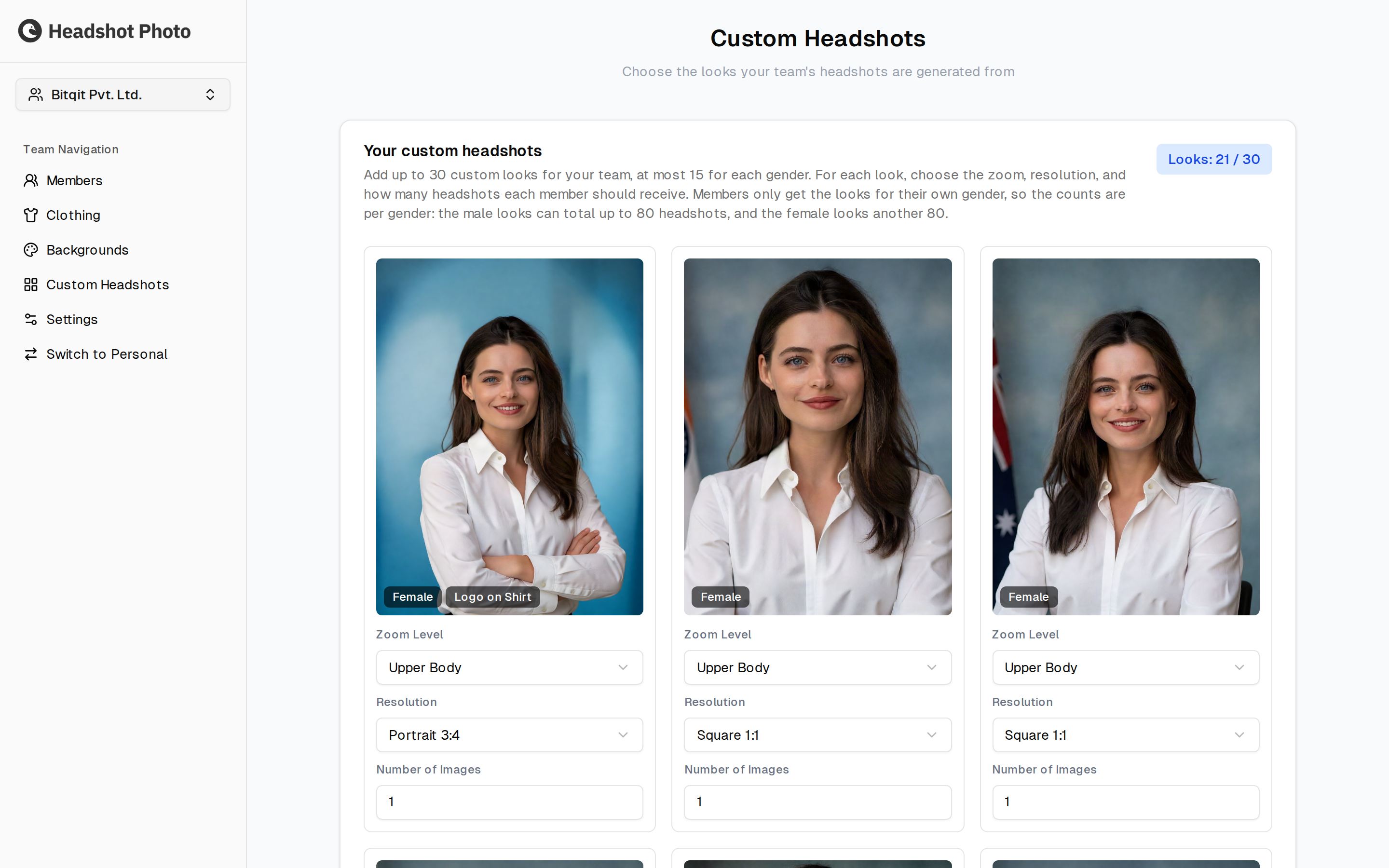
How Many Looks You Get
| Limit | Value |
|---|---|
| Looks per team | 30 |
| Looks per gender | 15 |
| Headshots from the male looks | up to 80 |
| Headshots from the female looks | up to 80 |
The counter in the top-right of the card — Looks: 21 / 30 — tracks how many you have used.
Configuring a Look
Each look shows a sample image of the result, with badges for the gender it applies to and for any extras it carries — a look with the team logo placed on the shirt is marked Logo on Shirt. Underneath are three settings:
| Setting | What it controls |
|---|---|
| Zoom Level | How close the crop sits — Upper Body, for example. |
| Resolution | The aspect ratio of the output: Portrait 3:4, Square 1:1, and so on. Pick the shape that matches where the headshots will be used. |
| Number of Images | How many headshots each member receives from this particular look. |
The Number of Images values are what add up to the 80-per-gender ceiling. Spreading a larger number across fewer looks gives members more variations of a single style; spreading a smaller number across more looks gives them more styles to choose between.
Finishing Steps
A look can carry finishing steps — retouch, fix flyaways, and the company logo on the shirt. Tick them while the look is being authored and every image that look produces gets them: the preview samples rendered during authoring, and each member headshot generated from it.
Finishing belongs to the look, not the team, so different looks in the same team can finish differently — a formal look with the logo applied, a plainer one without.
Editing a Look
A look can be edited in place. The look and the preset made from it keep their identity, so member headshots already generated from it stay attached to it and your look count does not change.
Editing is limited to HeadshotPhoto staff, like enabling custom headshots itself. The count and position stay yours — editing a look never overwrites them.
Choosing Resolutions
Match the resolution to the destination rather than picking one for everything:
- Square 1:1 — LinkedIn, Slack, most profile avatars, which crop to a circle or square
- Portrait 3:4 — company directories, speaker bios, printed material