
Choosing Backdrops
Backdrops (also called styles or backgrounds) determine the setting behind each team member in their headshots. Choosing consistent backdrops ensures a cohesive, professional look across your organization.
How Backdrops Work
When you select backdrops for your team:
- All team members will have headshots generated with these backgrounds
- Multiple selections are recommended - each member gets headshots in each selected style
- Consistency is maintained across your organization
Available Backdrop Categories
HeadshotPhoto.io offers 60+ professional backdrop styles organized into categories:
Corporate & Office
Professional office environments suitable for corporate headshots:
- Executive Office - Traditional wood-paneled office setting
- Modern Office - Clean, contemporary workspace
- Glass View - Office with city skyline views
- Conference Room - Professional meeting room setting
- Minimalist Office - Simple, distraction-free background
Solid Colors
Clean, simple backgrounds that work for any industry:
- White - Classic, clean look
- Light Gray - Soft, professional
- Navy Blue - Corporate and trustworthy
- Charcoal - Modern and sophisticated
- Gradient options - Subtle color transitions
Nature & Outdoor
Natural settings that convey approachability:
- Garden - Lush greenery backdrop
- Park Setting - Outdoor professional look
- Forest Path - Natural, relaxed atmosphere
- Coastal - Beach or waterfront settings
Creative & Modern
Contemporary backgrounds for creative industries:
- Studio Lighting - Professional photo studio look
- Abstract - Modern artistic backgrounds
- Tech Aesthetic - Suitable for tech companies
- Startup Vibe - Casual yet professional
Patriotic Display
A flag-and-government-interior backdrop, available per country so the flag behind your team is the right one:
| 🇺🇸 United States | 🇮🇳 India | 🇨🇦 Canada | 🇬🇧 United Kingdom |
| 🇦🇺 Australia | 🇫🇷 France | 🇩🇪 Germany | 🇨🇳 China |
| 🇵🇭 Philippines | 🇧🇷 Brazil |
The pickers search on the country name, so typing united states or brazil finds the right backdrop without scrolling the full catalogue.
Selecting Backdrops
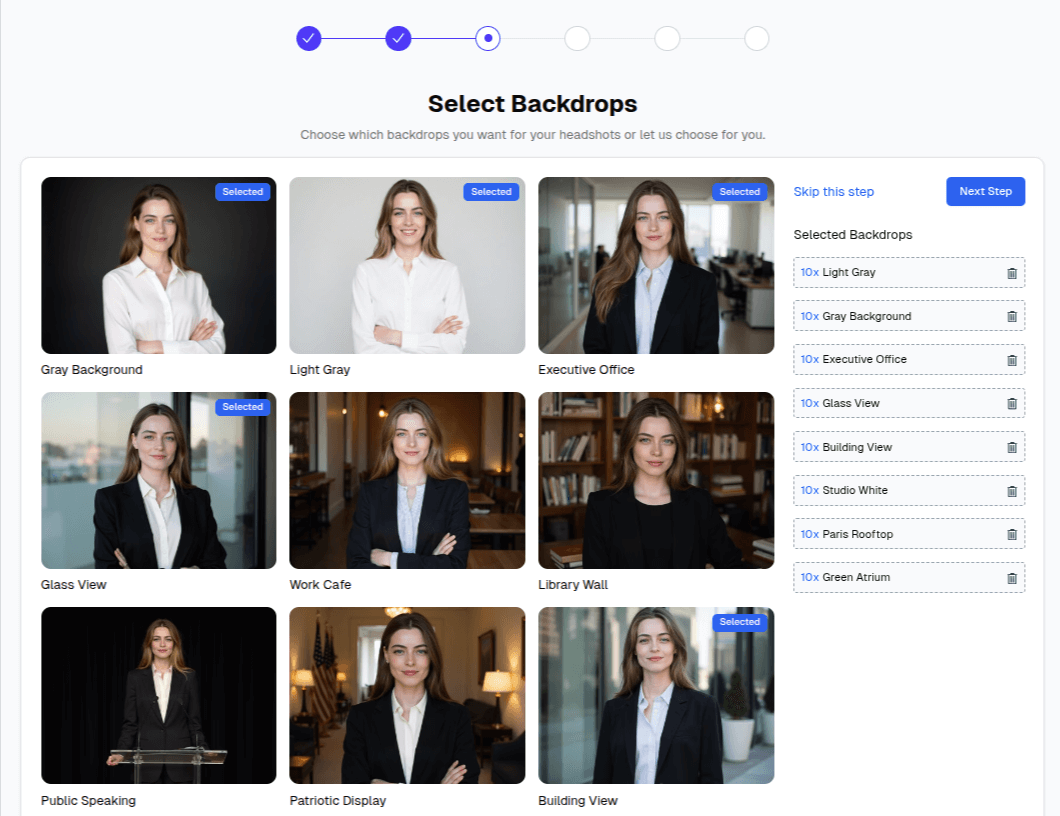
- Browse through the available backdrop options
- Click to select the styles you want for your team
- Selected backdrops are highlighted
- You can select multiple backdrops
Best Practices
Match Your Brand
Choose backdrops that align with your company culture:
| Company Type | Recommended Styles |
|---|---|
| Law Firm | Executive Office, Solid Navy, Library |
| Tech Startup | Modern Office, Abstract, Studio |
| Healthcare | Light Gray, Clean White, Soft Blue |
| Creative Agency | Studio Lighting, Gradient, Abstract |
| Finance | Executive Office, Glass View, Charcoal |
Consider Your Use Cases
Think about where these headshots will be used:
- LinkedIn profiles - Professional, simple backgrounds work best
- Company website - Match your site's aesthetic
- Marketing materials - Consider brand colors
- Email signatures - Simple backgrounds are clearer at small sizes
Consistency Tips
Changing Backdrops Later
You can update your team's backdrop selections at any time from your team dashboard:
- Go to your Team Dashboard
- Click Backdrops in the sidebar
- Add or remove backdrop selections
- Changes apply to future headshot generations
Next Steps
After selecting your backdrops, proceed to choose clothing options for your team: