
Creating a Team
Creating a team is the first step to getting professional headshots for your organization. This guide walks you through the team creation process.
Starting the Team Creation Flow
- Log in to your HeadshotPhoto.io account
- Click "New Headshot" or navigate to the add page
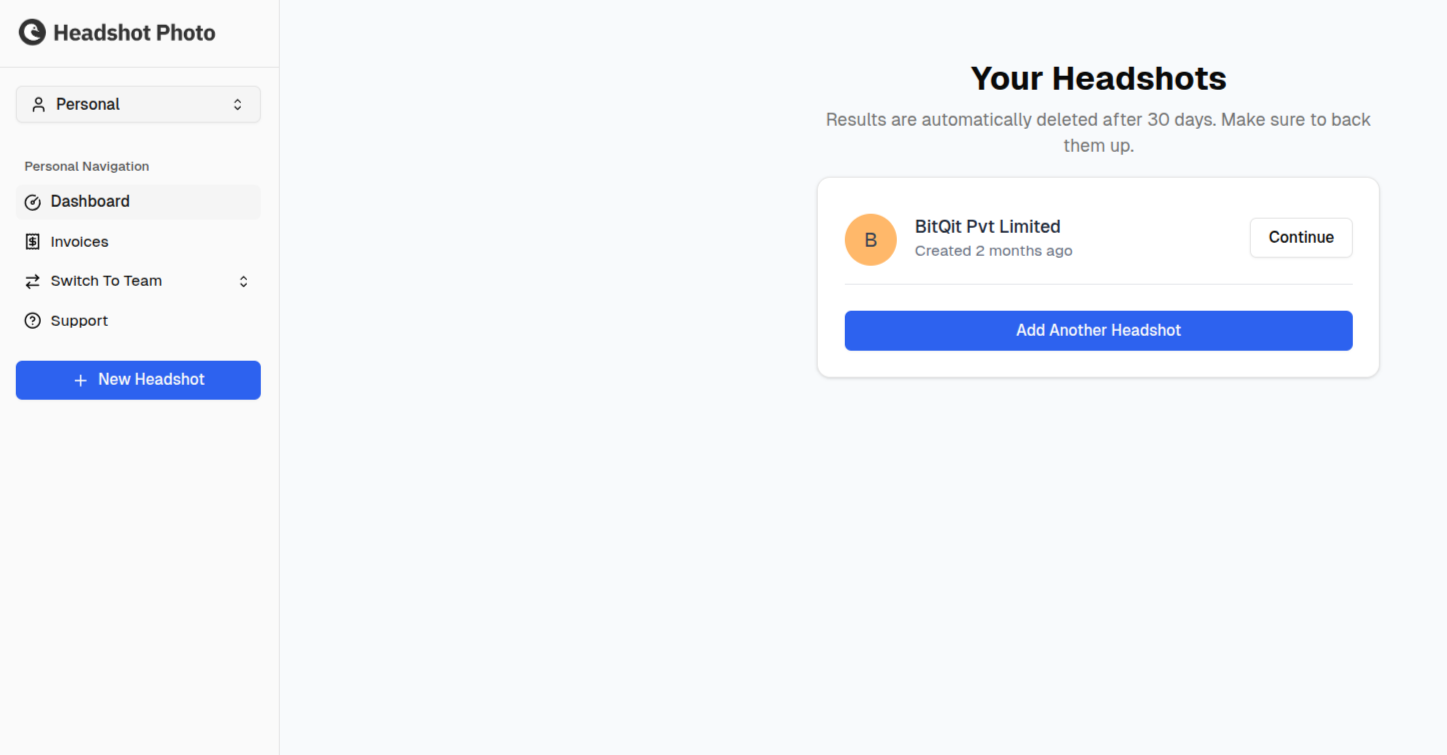
- Select "Team Package" (instead of Individual)
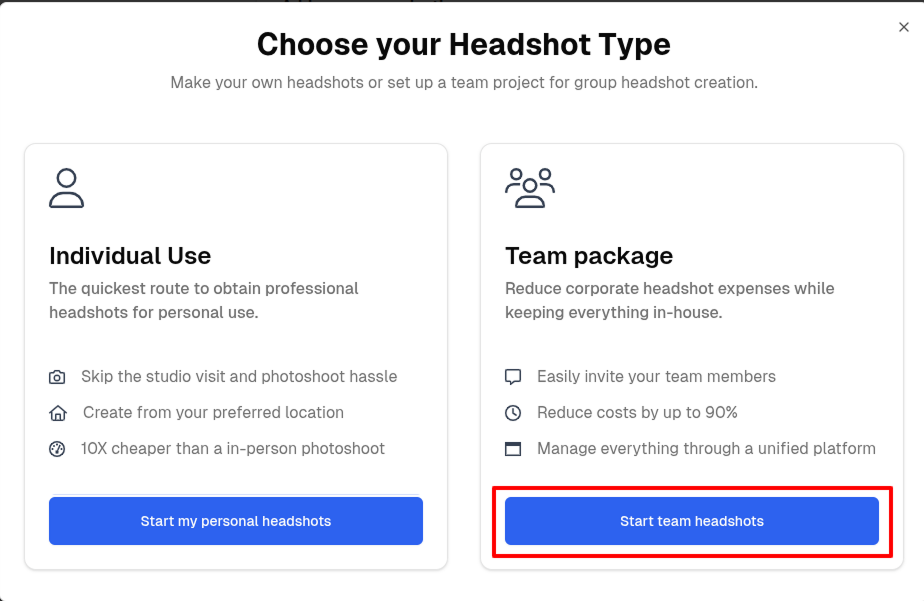
You'll be taken to the team creation wizard.
Team Information
Fill in the following details about your organization:
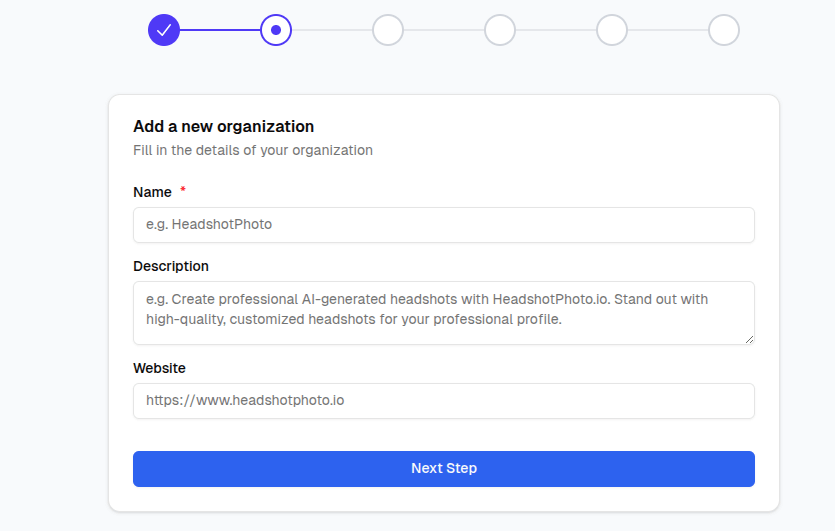
Organization Name
Enter your company or team name. This will be displayed to team members when they receive their invitation.
Examples:
- Acme Corporation
- Marketing Department
- Sales Team Q4
Description (Optional)
Add a brief description of your organization or the purpose of this headshot project. This helps team members understand why they're being asked to participate.
Examples:
- "Company-wide headshot refresh for our new website"
- "Professional photos for the annual report"
- "LinkedIn profile photos for the sales team"
Website (Optional)
Enter your company website URL. This adds credibility to the invitation emails your team members receive.
After Creating Your Team
Once you've entered your team information and clicked Continue, you'll proceed through the setup wizard:
Tips for Team Setup
Managing Multiple Teams
You can create multiple teams if you need different configurations for different groups. For example:
- Executive Team - Premium styling with formal backgrounds
- Sales Team - Friendly, approachable backgrounds
- Engineering Team - Modern, tech-focused styling
Each team can have its own:
- Background styles
- Clothing options
- Branding/logo placement
- Member list