
Team Billing
Team billing provides a complete view of your organization's headshot spending and credit usage. This guide covers all billing features available to team managers.
Accessing Billing
To view team billing:
- Go to your Team Dashboard
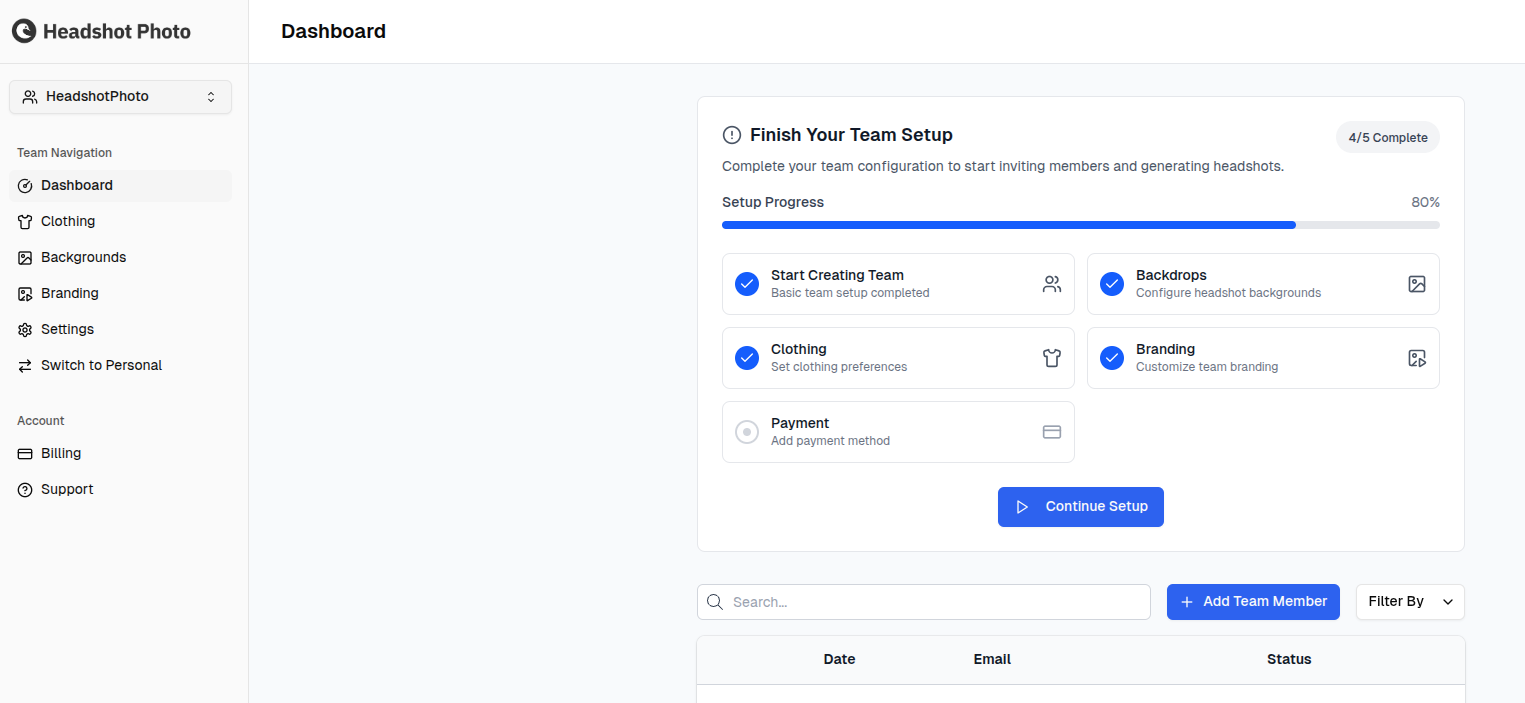
- Click Billing in the sidebar
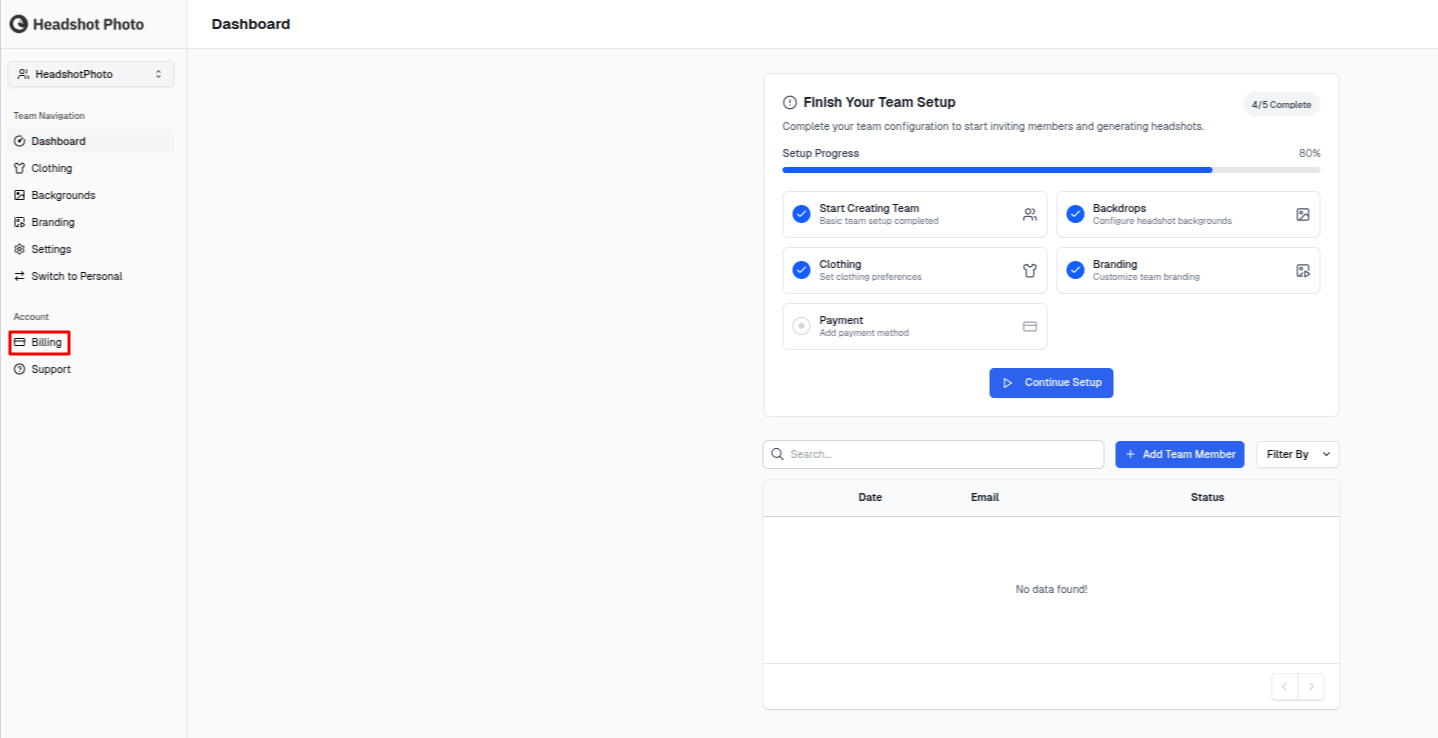
- You'll see your billing overview

Billing Overview
The billing page shows:
- Current credit balance - Available credits for headshot generation
- Quick purchase button - Add more credits instantly
- Transaction history - All credits purchased and used
Transaction History
Transaction Types
Your history includes two types of transactions:
| Type | Description |
|---|---|
| Purchase | Credits added to your team |
| Consumption | Credits used for headshot generation |
Transaction Details
Each transaction shows:
- Date and time - When the transaction occurred
- Description - What the transaction was for
- Amount - Credits added or consumed
- Balance - Running balance after transaction
Filtering Transactions
You can filter transactions by:
- Date range
- Transaction type (Purchase/Consumption)
- Search by description
Purchasing Credits
From Billing Page
- Click Purchase Credits or Add Credits
- Set how many members you are buying for
- Check the total, then click Purchase Credits
- Complete payment via Stripe
- Credits are added immediately
Choosing the Member Count
The purchase panel is a calculator, not a list of fixed packages. Set the number of members with the slider, or type it into the box above it — anything from 1 to 1000. The panel recalculates as you move it:
| Line | What it shows |
|---|---|
| Price per license | The discounted price of one credit, with the undiscounted price struck through beside it |
| Volume discount | The percentage coming off, shown only when a discount applies |
| Total Cost | What you will actually be charged |
| You save | The difference against the undiscounted price |
Larger member counts move you into better pricing — 5+, 10+, 50+, and 200+ each unlock a deeper discount, and the credits your team has bought previously count toward which tier you land in. Credits has the full table and worked examples.
Payment Methods
We accept:
- Credit cards (Visa, Mastercard, American Express)
- Debit cards
- Other payment methods available through Stripe
Payment Security
Receipts and Invoices
Automatic Receipts
After each purchase:
- Email receipt sent to the purchaser
- Receipt available in transaction history
- Contains all necessary tax/accounting information
Accessing Past Receipts
- Go to Billing
- Find the purchase in transaction history
- Click View Receipt or the receipt icon
- Download or print as needed
Understanding Credit Consumption
When Credits Are Used
Credits are consumed when:
- A team member's AI model is trained
- Headshots are generated
- Additional editing features are used
Tracking Usage
The consumption transactions show:
- Which member triggered the usage
- How many credits were consumed
- What stage (training, generation, etc.)
Budget Management
Setting Budget Expectations
Before starting:
- Estimate credits needed per member
- Multiply by team size
- Add 10-20% buffer for retries/new members
Monitoring Spend
Regular monitoring helps control costs:
- Review transactions weekly
- Compare actual vs. estimated usage
- Adjust future purchases accordingly
Low Balance Alerts
You'll be notified when:
- Balance drops below a threshold
- A generation fails due to insufficient credits
- Payment method issues occur
Team Payment Settings
Payment Method Management
Team owners can:
- Add payment methods for future purchases
- Remove saved payment methods
- Update default payment method
Billing Contact
Ensure your billing contact is correct:
- Receipts are sent to this email
- Payment notifications go here
- Update in team settings if needed
Common Billing Questions
Can I get a refund?
Credits are generally non-refundable but:
- Failed generations are automatically refunded
- Contact support for exceptional circumstances
Do credits expire?
No, credits never expire. They remain on your team account until used.
Can I transfer credits?
Credits cannot be transferred between teams. Each team maintains its own credit balance.
Can multiple people purchase credits?
Yes, any team manager can purchase credits. All purchases add to the same team balance.
Next Steps
Configure your team settings including billing notifications: