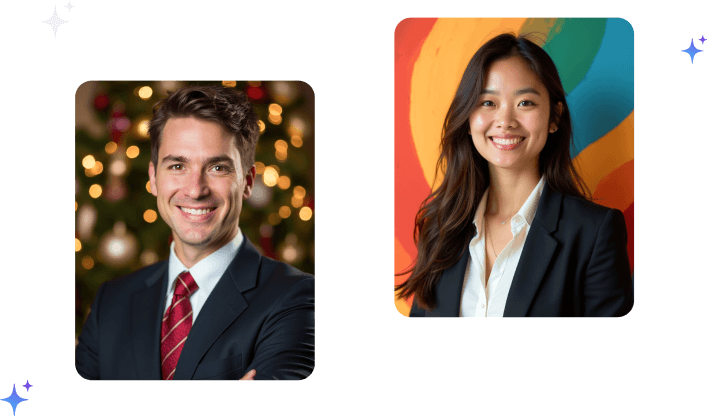
iPhone Headshot Settings: The Exact Camera Setup Pros Use
Forget buying gear. The difference between a snapshot and a real headshot lives in five settings you already have.
I used to think pros had some secret.
Better lens. Better light. Some app the rest of us didn't know about. So when a photographer friend handed me her iPhone and said "take a headshot of me, right now," I froze.
I held it up. Tapped the shutter. Showed her.
She laughed. "That's a snapshot. Let me show you the settings."
Here's the weird part. She didn't change phones. She didn't add a single piece of gear. She changed five things inside the camera that were already there. The next shot looked like it came out of a studio.
That afternoon rewired how I think about phone headshots. Let me hand you the same five settings, in the exact order pros set them.
First, kill the default lens
The biggest mistake happens before you take a single photo.
You open the camera and it defaults to the main wide lens at "1x". For a headshot, that's the worst choice you can make. Stand close enough to fill the frame with your face and the wide lens stretches your nose, balloons your forehead, and shrinks your ears. That's the "selfie distortion" everyone hates.
The fix: switch to 2x or the telephoto lens. On the iPhone 17 Pro and Pro Max you get a true telephoto. On a standard iPhone 17, the 2x crop pulls from the 48-megapixel sensor and still looks clean.
A longer focal length compresses your features the way real portrait lenses do. Flatter face. Truer proportions. More expensive-looking instantly.
The lens you choose matters more than the phone you own. A 2x crop on an older iPhone beats a wide-angle shot on the newest one.
Then back up. Stand three to eight feet away and let the lens do the work. Never shoot at arm's length.
Turn on Portrait Mode, then leave it alone
This is the setting that does the heavy lifting.
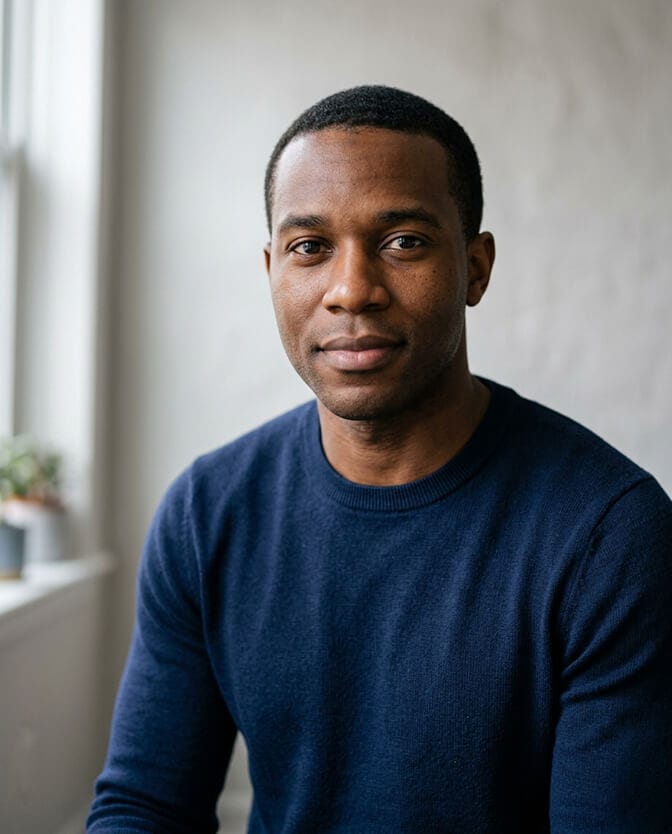
Portrait Mode reads depth and blurs the background, which is the single look that says "professional" to anyone scrolling past. Swipe over to Portrait in the camera, or, on the iPhone 15 and newer, just shoot a normal photo of a person and tap the Depth button that appears. You can dial the blur in afterward.
Here's the setting inside the setting that pros obsess over: the f-stop.
When you're in Portrait Mode, tap the little f icon in the corner. It opens a slider that controls how strong the background blur is. Crank it all the way down and the blur looks fake, with chunks of your hair melting into the background. Crank it all the way up and there's no separation at all.
Set it between f/2.8 and f/4. That's the sweet spot. Enough blur to lift you off the background, not so much that the phone makes mistakes around your hair and shoulders.
On Pro models, the LiDAR sensor maps that depth even in a dim room, so the edges stay clean. Stay with me, because the next setting is where most people quietly ruin the shot.
Lock your focus and nail the exposure
Your phone is guessing. Stop letting it.
By default the camera refocuses every time you move and rebalances brightness on its own. Mid-headshot, that means your eyes drift soft and your face flickers between too bright and too dark.
Take control in two taps:
- Tap directly on your eye on the screen. That sets focus exactly where it belongs. Sharp eyes are the one thing a headshot cannot live without.
- Swipe up or down next to the focus box to adjust exposure. Nudge it until your skin looks natural, not blown-out white and not muddy.
Want it to hold? Press and hold on your face until "AE/AF Lock" appears at the top. Now focus and exposure are frozen, so every shot in the set matches. This is the trick that makes a batch of fifty photos look consistent instead of all over the place.

Pick the right Portrait Lighting (and ignore the flashy ones)
Apple buries a genuinely useful tool under Portrait Mode and almost nobody uses it right.
While you're framed up, swipe through the Portrait Lighting options at the bottom. You'll see Natural Light, Studio Light, Contour Light, and a few dramatic Stage Light effects.
Forget the dramatic ones for a headshot. Here's the honest breakdown:
- Natural Light: clean, true, no manipulation. Your safest pick for a headshot that needs to look like the real you.
- Studio Light: brightens your face evenly like a softbox. Excellent for a polished LinkedIn or company-directory shot.
- Contour Light: adds shadow and structure. Use sparingly, only if your lighting is already flat.
Skip Stage Light and the mono effects entirely. They black out your background and look like a costume, not a credential.
My default? Natural Light or Studio Light. Nothing else.
The settings that quietly punch above their weight
A few toggles outside the main flow that pros set once and forget.
- Turn off the front camera mirror, then forget the front camera. The selfie cam is fine in a pinch, but the rear lenses are sharper and give you that telephoto option. Prop the phone up, use a tripod or a stack of books, and shoot yourself with the back camera and a self-timer.
- Enable the grid. Settings, then Camera, then turn on Grid. It helps you center your eyes on the upper third line, which is where they belong in a headshot.
- Shoot in the highest resolution and skip digital zoom. Pinching to zoom past your optical lenses just throws away detail. Move your feet instead.
- Clean the lens. Sounds dumb. A smudge of pocket lint softens your entire shot into a hazy mess, and it's the number one reason DIY headshots look "off" for no obvious reason.
If you want the full environment dialed in around these settings, our guide on getting your headshot lighting setup right pairs perfectly with everything above.
Where the settings stop saving you
I'll be straight with you, because hyping this up would be useless.
You can absolutely nail a great headshot with these settings. I've watched people do it. But there's a real gap between landing one good shot and producing a consistent set of studio-grade looks across different outfits, angles, and backgrounds.
When you shoot yourself, you're managing all five settings plus your own expression plus the awkwardness of smiling at a phone on a stack of books. It works on a good day. On a rushed day, with bad light and ten minutes, the whole thing falls apart.
That's the exact problem we built Headshot Photo to solve. You upload a handful of normal selfies, and every setting I just walked you through, the lens compression, the f-stop, the lighting, the sharp eyes, gets applied automatically across a full set of professional headshots. If you're weighing it against doing everything by hand, our breakdown of AI headshots versus a traditional studio session lays it out plainly.
We've generated more than 1.4 million headshots for over 50,000 people, and the most common thing they tell us is that it saved them an entire afternoon of fiddling with exactly these settings.
The exact pro setup, in order
Here's the whole thing as a checklist you can run in sixty seconds:
- Switch to the 2x or telephoto lens. Never the wide default.
- Stand three to eight feet back. Let the lens flatter you.
- Turn on Portrait Mode and set the f-stop to f/2.8 to f/4.
- Tap your eye to focus, swipe to set exposure, then press and hold for AE/AF Lock.
- Choose Natural Light or Studio Light. Ignore the dramatic effects.
- Grid on, lens clean, highest resolution, no digital zoom.
Run that sequence and your phone stops taking snapshots and starts taking headshots.
What I wish I'd known sooner
That photographer friend never used a fancy camera on me. She used the phone I already had and the settings I'd been ignoring for years.
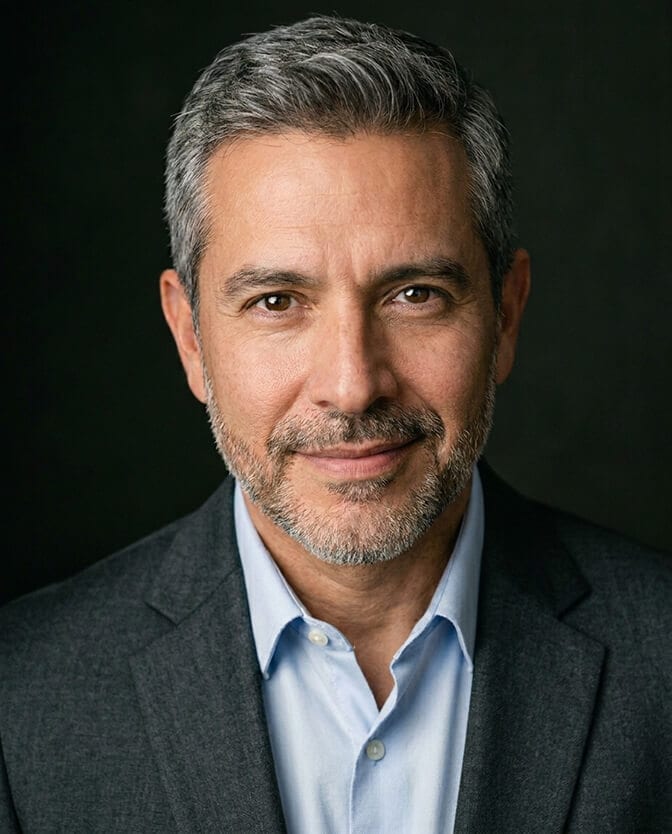
The gap between a snapshot and a real headshot was never the hardware. It was five settings and the discipline to set them every single time.
Now you have the list. On the days you've got a window, twenty minutes, and the patience to run it, you'll get a shot you're proud of.
Your headshot is the first impression you make before you ever say a word. It deserves more than the default settings.
And on the days you don't have the window or the time? There's a faster way to land the exact same result.
Want every one of these settings applied for you, automatically? Upload a few selfies and let Headshot Photo turn them into a full set of studio-quality headshots in about ten minutes. The pro setup, minus the setup.
Frequently Asked Questions
1. What are the best iPhone camera settings for a headshot?
The core setup is Portrait Mode with the f-stop set between f/2.8 and f/4, shot on the 2x or telephoto lens from three to eight feet away. Tap your eye to lock focus, swipe to set exposure, and choose Natural Light or Studio Light for the cleanest professional look. Turn on the grid and keep the lens clean for consistent, sharp results.
2. Portrait Mode vs normal Photo mode for headshots: which is better?
Portrait Mode is better for headshots because it blurs the background and separates you from whatever is behind you, which reads as professional instantly. On the iPhone 15 and newer, you can also shoot in normal Photo mode and add the depth effect afterward using the Depth button. Either way, the background blur is what elevates a headshot above a casual snapshot.
3. How do I set the f-stop for a professional headshot on iPhone?
Open Portrait Mode, tap the small "f" icon in the corner, and drag the slider until it reads somewhere between f/2.8 and f/4. Lower numbers blur the background more but can soften your hair edges, while higher numbers reduce separation. The middle range gives you clean, believable depth without the phone making mistakes around your shoulders.
4. How much does a professional headshot cost compared to doing it on my iPhone?
A traditional photographer typically runs $150 to $400 or more per session once you add travel and scheduling. Shooting it yourself with these iPhone settings costs nothing but your time. An AI option like Headshot Photo starts at $34 for a full set of polished looks, which is why many people land there after pricing out the alternatives. You can see the full breakdown on our pricing page.
5. Are iPhone headshots good enough to look professional for work?
For LinkedIn, résumés, team pages, and most professional uses, yes, as long as you apply the right settings. Correct lens choice, Portrait Mode, locked focus, and clean lighting produce an image that looks completely professional at the sizes these platforms display. The main limit is variety, since getting many polished looks fast is where an AI headshot set earns its place.